
Movavi vs. Adobe® Premiere® Pro: AI Video Editing Tools Compared

Movavi Video Editor
  • Trim, cut, crop, and rotate videos
  • Add titles, stickers, and transitions
  • Apply visual effects

By clicking the download button, you're downloading a trial version of the program.*

Edited by
Ben Jacklin
5,117

Movavi Video Editor fits beginners who want AI that works in one click. Premiere® Pro fits people who edit for a living and have time to learn a deep toolset. That is the short answer to Movavi vs. Premiere® Pro, and the sections below show where each AI tool earns it.

You are the reader if you film lifestyle vlogs, game reviews, or product demos and want an AI video editor that handles the tedious parts. Maybe Premiere® Pro is the name you keep hearing, and you want to know whether a Premiere® Pro alternative would do the job. This comparison covers six criteria: auto captions, audio cleanup, background removal and tracking, generative features, what you pay for AI, and templates. Ease of learning runs through all of them.

Movavi vs. Premiere® Pro

Premiere® has more AI tools, including generative ones. Movavi has fewer, and each is built to run in one click.

Criterion

Movavi Video Editor

Adobe® Premiere® Pro

Best for

Beginners and everyday creators

Professional editors and studios

Auto captions

AI subtitles in 100+ languages, 60+ designs, active word highlighting

Speech to Text with translation into 27 languages; styling set up manually

Audio cleanup

One-click AI audio noise removal and AI video denoise

Enhance Speech (AI) for voice; no convenient built-in video grain removal

Background removal and tracking

AI background removal with no green screen, AI motion tracking, auto-tracked cropping

AI Object Mask, Auto Reframe; you need to understand how masks work

Generative AI

None

Generative Extend, video and sound generation

Cost of AI

Included in the full version, no credit system

Generative features use Firefly® credits

Ease of learning

Easy

Hard

Platforms

Windows and macOS

Windows and Mac

Starting price

$19.95/month

$22.99/month

Movavi Video Editor and Premiere® Pro in brief

Best for: lifestyle vlogs, travel videos, and unboxings; game and gadget reviews; social ads and project demos.

Why we picked it: Movavi Video Editor is an intuitive video editor with customizable video templates, one-click AI tools, and hundreds of drag-and-drop effects. It is a desktop app for Windows and macOS. Movavi Ideas, a free tutorial hub with a new editing trick every week, gives you somewhere to start when a blank timeline feels big. Hover previews show an effect on your clip before you drop it, and auto subtitles turn a spoken vlog into captioned video in a click.

Key features:

  • AI subtitles with active word highlighting: the word being spoken lights up in sync with the audio.
  • AI audio noise removal: clears traffic, wind, and steady hums while keeping the voice.
  • AI background removal and AI motion tracking: swap a backdrop with no green screen, or lock a graphic to a moving subject.
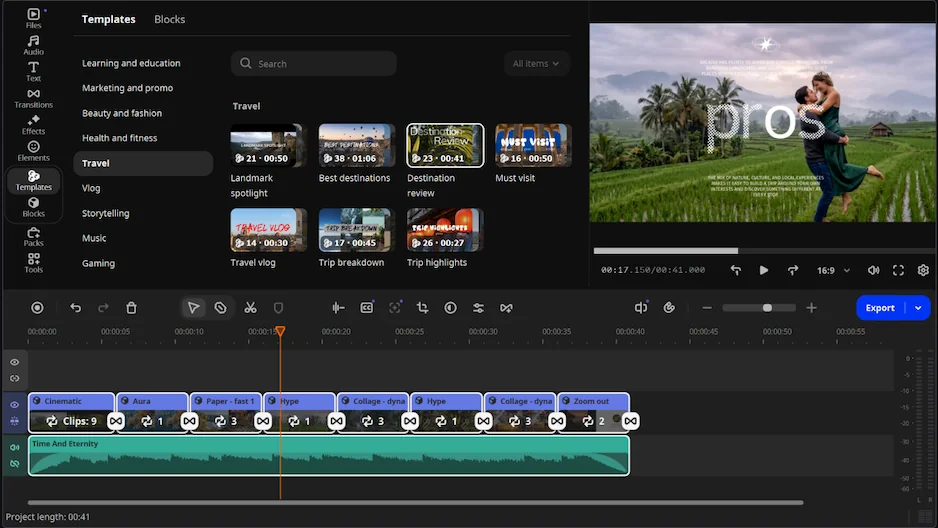
  • Movavi Video Templates is a multi-style library of customizable, pro-looking, modular templates for any kind of video. Each one is built from Blocks, short pre-edited segments where you drop in your own clips, photos, and text.
  • Built-in effects: transitions, titles, filters, and stickers, plus copyright-free music.
Pros:
  • No AI credit system: every AI tool is included in the full version.

  • Several templates come with the full version at no extra charge.

  • Capterra reviewers rate its ease of use 4.8.

Cons:
  • Lacks advanced, detailed controls for a professional workflow.

  • No flexible UI customization.

  • No web version or cloud integration.

Price and platforms: Windows and macOS. Movavi Video Editor Free and the full version (monthly or yearly subscription) of $19.95/month.

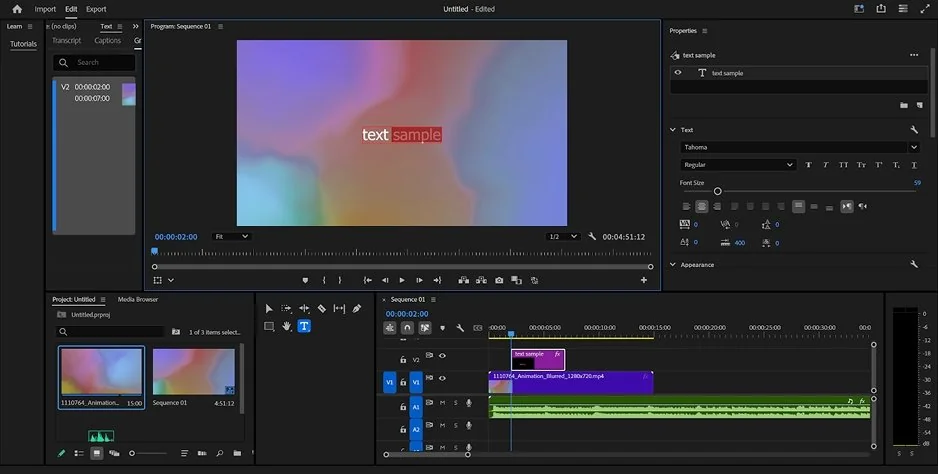
Best for: professional editors and studios working on multicam projects, film and TV, or team commercials.

Why it is here: It is the industry standard for people who edit video for a living, and it comes alone or inside Creative Cloud® Pro.

Key features:

  • Multicam editing and VFX plugin integration, with After Effects® nearby for motion graphics.
  • Lumetri color correction with curves, color wheels, and HSL, plus Auto Color.
  • Warp Stabilizer for shaky footage.
  • Essential Graphics for titles, set up by hand.
Pros:
  • Integrates with After Effects®, Photoshop®, and Audition®.

  • Flexible editing at any level of complexity.

  • Regular AI updates, such as Object Mask and Generative Extend.

Cons:
  • Subscription only, with no one-time purchase, and no way to try it before entering payment details.

  • Crashes, bugs, and demanding hardware requirements show up in user complaints.

  • A high barrier to entry for beginners.

Price and platforms: Windows and Mac. Monthly or annual subscription, with a 7-day trial, from $22.99/month.

Auto captions and transcripts

AI-assisted editing means the software does a routine edit for you. Captions are the clearest example: both editors use speech-to-text, which turns what people say into on-screen words, and both get a vlog captioned.

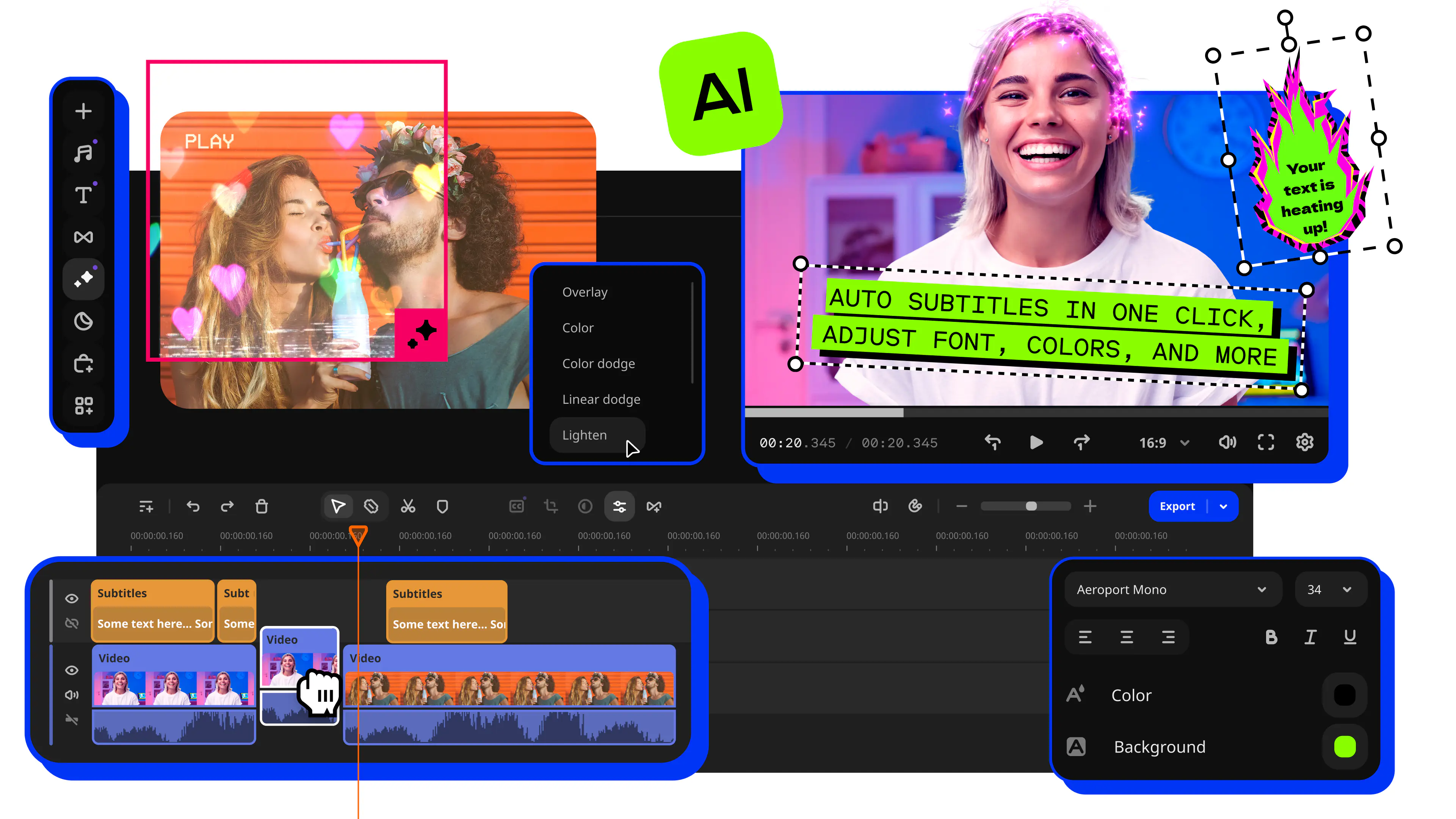
Movavi's auto captions recognize 100+ languages. You pick from 60+ designs, and the active word highlights in sync with the audio, which suits short social videos. You can edit the text, timing, and style after generation, and export the subtitles as a standalone .SRT file.

Premiere®'s Speech to Text creates auto subtitles and translates them into 27 languages. Styling has to be set up manually, so the captions arrive plain and you build the look yourself.

Better for a captioned vlog this afternoon: Movavi, because designs and word highlighting are ready-made.

Better if you want to dial in every caption detail: Premiere®, as long as you enjoy that setup.

Audio cleanup: Enhance Speech vs. Movavi AI noise removal

Picture a travel video with a busy street behind your voice. Both editors can fix that, and both do a form of voice isolation: keep the voice, lower what surrounds it.

Movavi's AI noise removal clears traffic, wind, and steady hums in one click. It covers high, middle, and low pitches and targets 95% noise reduction, and there is a manual slider mode when you want to tune it yourself.

Premiere®'s Enhance Speech (AI) cleans noise from a voice. The wider audio toolkit goes further: Essential Sound, auto-ducking that lowers music under speech, and Audition integration. For a simple clip, that is more than the job needs.

Grainy low-light footage is a separate problem. Movavi has AI video denoise, which removes grain in one click while keeping faces and edges sharp. Premiere® has no convenient built-in tool for video grain, and people usually add a paid plugin, Neat Video.

Better for fixing a noisy clip fast: Movavi.

Better for full audio mixing: Premiere®.

AI background removal and tracking

Movavi's AI background removal takes the backdrop out of any video with a person in it. No green screen is needed, and you can drop in a solid color or a custom image. It works best on people or clearly separated objects, and you choose between a quicker and a more precise processing mode.

Tracking follows the same one-click logic. AI motion tracking locks a graphic, label, or image to a moving subject. Auto-tracked cropping keeps a speaker or product centered while it turns horizontal footage into a vertical clip for Shorts, Reels, or TikTok.

Premiere®'s AI Object Mask selects and tracks a person or an object without a green screen. It handles more than a person, and Auto Reframe covers the vertical conversion. The catch is that you need to understand how masks work, and control stays mostly manual.

Better for a game review or product demo with a cut-out background: Movavi.

Better for isolating objects: Premiere®.

Generative AI

Movavi has no generative AI. Its AI tools automate routine edits: captions, noise removal, tracking, and cropping.

Premiere® does have generative features. Generative Extend sits in its AI set alongside video and sound generation, and these generative features use Firefly® credits.

For vlogs, reviews, and demos you film yourself, the routine tools above cover most of the tedious work. Generative features matter when you want video or sound you did not record. If that is on your list, Premiere® is the one to pick.

Better for generative video and sound: Premiere®.

Premiere® Pro AI features and how you pay for AI

Premiere® Pro AI features are Speech to Text, Enhance Speech, Auto Reframe, Object Mask, music auto-ducking, Generative Extend, and video and sound generation. They live inside the program's overall logic, so you need to know the interface and how each tool works. Generative ones run on Firefly® credits.

Premiere® is subscription only, billed monthly or annually, on its own or inside Creative Cloud® Pro. There is no one-time purchase. A 7-day trial exists, but you start the trial and enter payment details before you can download it.

Movavi puts every AI tool in the full version, with no credit system, so nothing runs out mid-project. The full version is a monthly or yearly subscription.

You can also start smaller. Movavi Video Editor Free lets you test auto subtitles, auto crop, and silence removal. Effects and templates are optional add-on subscriptions, so you pay for what you use.

Better for predictable AI costs: Movavi.

Better if you already pay for Creative Cloud: Premiere®.

Templates: ready-made projects with the editing built in

Every Movavi template arrives with pre-set editing, music, transitions, and text. You replace the placeholders in each Block with your own clips and photos, retype the text, and keep or swap the music. You can also reorder Blocks, add or remove them, change color themes, or build a whole video from Blocks alone. The library covers vlogs, business promos, family videos, holidays, and reviews.

Several templates come with the full version at no extra charge. The complete collection is a separate Movavi Templates subscription.

Premiere® has no built-in ready-made video templates. It offers Motion Graphics templates for titles and lower thirds, but most come through Adobe® Stock® for an extra fee, and you download, install, and import each one onto the timeline.

Better for starting from a finished structure: Movavi.

Better for building every title from scratch: Premiere®.

Which editor fits which video

A lifestyle vlog with subtitles. Open Movavi, run auto subtitles, and pick a design with active word highlighting. Start the opener from the titles templates.

A travel video with street noise. Movavi's AI noise removal clears the traffic in one click. If your voice track already lives in Premiere®, Enhance Speech does the same job there.

A game review or product demo with the background cut out. Movavi's AI background removal handles the person on screen, and AI motion tracking can pin a label to the gadget in their hand. For a demo built around objects rather than people, Premiere®'s Object Mask is the better selector.

A professional project. A multicam shoot, an After Effects® handoff, or a team on Creative Cloud® points to Premiere®. Movavi lacks advanced, detailed controls for that kind of workflow.

What reviewers say

On Capterra, Movavi Video Editor holds 4.8 across 1,135 reviews. Premiere® Pro holds 4.7 across 574.

The gap shows in ease of use: 4.8 for Movavi against 4.0 for Premiere®. Two reviewers say it in their own words.

"the auto AI option to generate video captions" – Sean O., entertainer, Capterra review of Movavi Video Editor

"a steep learning curve for beginners" – Katja Z., Sr. Learning Partner, Capterra review of Adobe® Premiere® Pro

The criticism runs both ways. Movavi reviewers mention missing pro-level tools. Premiere® reviewers mention heavy hardware demands and the monthly fee.

Which should you choose

  • Pick Movavi Video Editor if you make vlogs, reviews, ads, or demos for yourself and want captions, noise removal, and tracking in one click, with no credits to count.
  • Pick Premiere® Pro if editing is your job, you need generative features, or your team already works in Creative Cloud®.
  • Not sure yet: Treat Movavi as the Premiere® Pro alternative to try first: it is simple and fast by design, and your first captioned video will show you whether it fits.

Movavi Video Editor Free lets you test auto subtitles, auto crop, and silence removal on your own footage. Run it on your last vlog, then browse Movavi Ideas for your next edit.

Movavi Video Editor
Create awesome videos easily

*The free version of Movavi Video Editor may have the following restrictions depending on the build: watermark on exported clips, 60-second video or 1/2 audio length limit, and/or some advanced features unavailable when exporting videos.

Frequently asked questions

What AI features does Premiere® Pro have?

Speech to Text, Enhance Speech, Auto Reframe, Object Mask, auto-ducking, and generative tools such as Generative Extend. One more worth knowing: Text-Based Editing lets you find and delete pauses by working in the transcript.

Does Movavi have AI?

Yes: AI subtitles, audio noise removal, video denoise, background removal, motion tracking, auto-tracked cropping, and silence removal. Some of these tools need an internet connection to process your files, and results vary with video quality and audio clarity.

Do I need a powerful graphics card for AI editing?

Premiere® is resource-intensive, and powerful hardware is recommended. Movavi runs on Windows 10 and 11 (64-bit) and on macOS 12.0 or higher, including Apple M1 and newer, with Fast Track HD acceleration for faster processing.

Is Movavi a good Premiere® Pro alternative for beginners?

It is built for that. The interface has tooltips and a how-to center, while Premiere® is a professional interface made up of many panels.

Have questions?
If you can’t find the answer to your question, please feel free to contact our Support Team.
Join us for discounts, editing tips, and content ideas

1.5M+ users already subscribed to our newsletter

By signing up, I agree to receive marketing emails from Movavi and agree to Movavi's Privacy Policy.