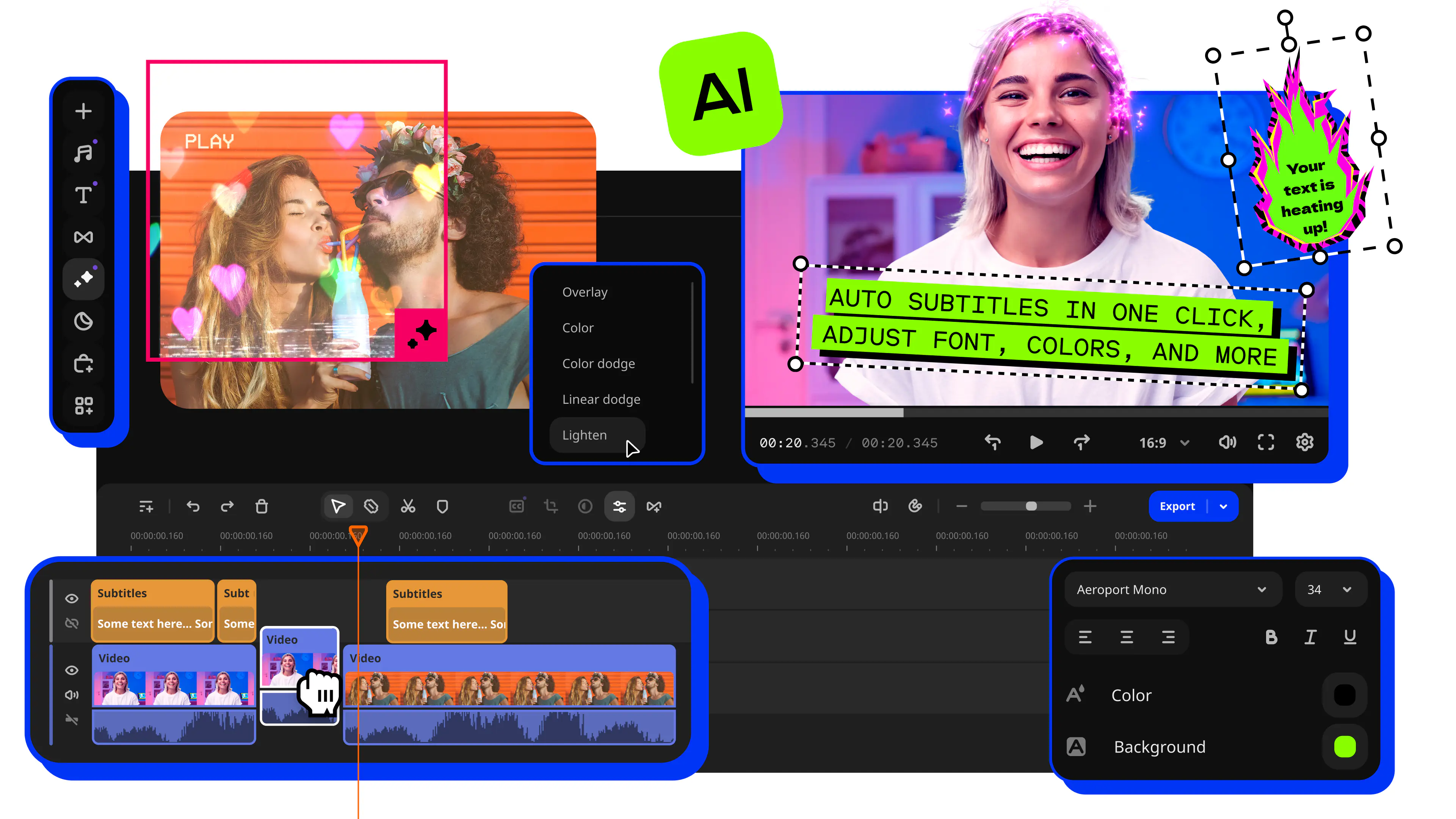

10 Best Video Editing Software for YouTube Videos and Vlogging in 2026

Movavi Video Editor
  • Trim, cut, crop, and rotate videos
  • Add titles, stickers, and transitions
  • Apply visual effects

By clicking the download button, you're downloading a free version of the program.*

Edited by
Ben Jacklin
13,482

The best video editing software for vlogging depends on how you film. Movavi Video Editor suits beginners who cut daily routines, unboxings and travel videos on a desktop, CapCut suits short vertical clips, and DaVinci Resolve suits anyone ready to learn professional color grading. Nine more tools below cover Mac-only, browser-based and phone-first setups.

A vlog asks more of an editor than most videos do. You come home with a card full of clips, the music has to sit under your voice, and every upload should feel like the same channel. This guide compares ten tools as a video editor for vloggers and as video editing software for YouTube, with family trips, gadget reviews and daily routines as the scenes we kept in mind.

Editor

Best for

Platforms

Free version

Starting price

Lifestyle vlogs, unboxings and travel videos from beginners

Windows, macOS

Yes

$19.95/month

Short vertical clips and long YouTube videos

Mobile, web, desktop

Yes

$19.99/month

How we picked the vlog editing soft­ware

Every tool here was checked against the same seven questions, each one taken from a vlogger's normal week:

  • Vlog templates: does the editor give you a ready-made structure for intros, outros and repeat formats?
  • Big footage: how comfortably does it handle a day or several days of clips?
  • Sound and music: is there noise cleanup, silence removal or a licensed music library?
  • Color: are there presets for a consistent look, or manual grading for a custom one?
  • Export for YouTube and Shorts: YouTube Help recommends MP4 with H.264 video and AAC-LC audio, calls 16:9 the standard on a computer, and says the player adapts vertical videos to their size.
  • Platform: Windows, macOS, a browser or a phone.
  • Price: free tiers, trials, subscriptions and one-time purchases.

We also noted whether AI tools run on credits. A credit that runs out mid-edit changes a weekly workflow, so it counts.

The 10 best editors for vlogs

  • Best for

    Lifestyle vlogs with daily routines, unboxings and travel videos, plus family road trips and gadget reviews.

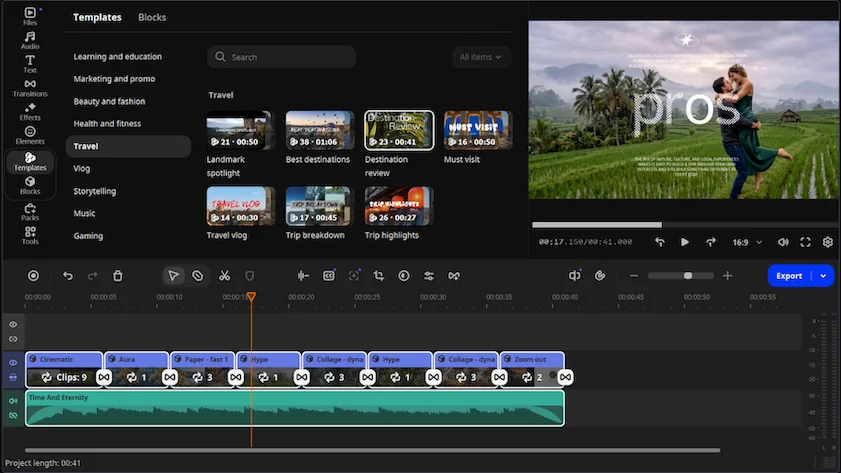
Why we picked it: Movavi Video Editor is an intuitive video editor with customizable video templates, one-click AI tools, and hundreds of drag-and-drop effects. Hover over a clip, effect or transition for an instant preview, then drag it onto the timeline: that workflow is why a beginner can edit a complete video on the first try. Movavi Video Templates is a multi-style library of customizable, pro-looking, modular templates for any kind of video.

Key features:

  • Templates built from Blocks. A template is a ready-made project made of Blocks, short segments such as an intro, a countdown, a quick cut or an animated collage, where you drop in your own clips, photos and text. Editing, music, transitions and text come pre-set, and you can reorder, add or remove Blocks. The Vlog and Travel categories, an intro video template and a YouTube outro video template are the ones to open first.
  • AI subtitles. Auto subtitles recognize more than 100 languages. You choose from over 60 designs, and each word lights up in real time as it is spoken.
  • Auto-tracked cropping. It converts horizontal footage into vertical formats while keeping the speaker or product centered, which is the step behind a YouTube Shorts cut.
  • Audio cleanup. AI audio noise removal clears traffic, wind and steady hums in one click, so a gadget unboxing filmed on a windy street stays listenable. Silence removal finds pauses and lets you set pause length and volume thresholds.
  • Movavi Ideas. A free tutorial hub with a new editing idea every week, each one short enough to follow in under a minute and covering vlogs, vertical clips and more.
Pros:
  • Pre-timeline trimming pulls short segments out of long source files before they reach the project, which suits a family weekend trip or several days of travel footage.

  • Every AI tool is included in the full version, with no AI credit system.

  • Ready-made color presets give a quick look, and manual controls adjust tone, contrast and saturation.

  • The full version exports in 4K.

Cons:
  • Lacks advanced, detailed controls for a professional workflow.

  • There is no flexible UI customization.

  • There is no web version or cloud integration.

  • Although hundreds of effects and several templates are available in the full version, additional sets require separate subscriptions.

Price and platforms: A desktop app for Windows and macOS. Movavi Video Editor (free version) adds a watermark, caps exports at 60 seconds and has no 4K export; the full version is a monthly or yearly subscription with no watermark from $19.95/month. Several templates come with the full version, and the whole collection is a separate Movavi Templates subscription.

  • Best for

    Short vertical clips and Shorts next to long-form YouTube videos.

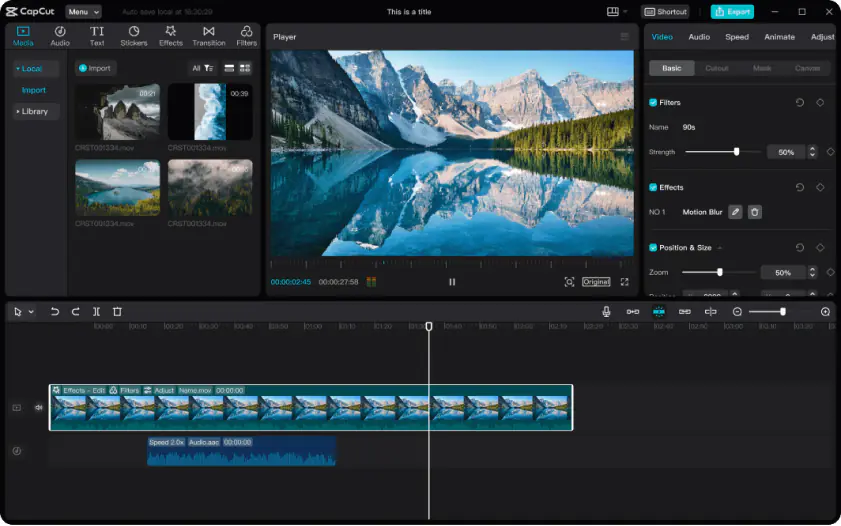
Why we picked it: CapCut earns its place for vloggers who post Shorts next to long YouTube videos: it is mobile-first, part of the TikTok ecosystem, and its auto-tracked cropping keeps the subject in frame for vertical versions. Many creators meet it on a phone, and it also runs on web and desktop.

Key features:

  • Auto-tracked cropping. It keeps the main subject in frame when you change the format.
  • AI toolkit. Camera tracking, relighting, speech recognition for subtitles, retouching, AI voiceover and background replacement all run on AI credits.
  • Editing tools. Keyframe animation, chroma key and speed ramping presets.
  • Trending templates. The library focuses on vertical content, applies a template to your clips as a whole and leaves little room for customization.
Pros:
  • Editing short vertical clips is fast, with a low barrier to entry.

  • The library of trending templates and effects is huge.

  • Users praise auto subtitles, subject-tracked cropping and automatic pause removal.

Cons:
  • Some effects and templates that used to be free are now marked Pro.

  • Not every feature carries over from phone to computer.

  • Some users ask how face and voice data are handled.

Price and platforms: Mobile, web and desktop; some features and content need an internet connection and an account. The free plan exports in 1080p with a watermark when you use Pro content or AI clips. Standard removes the watermark but has no 4K or AI, and Pro, billed monthly or annually, adds 4K and the full AI toolkit from $19.99/month.

  • Best for

    YouTube channels that post often, and multi-layer projects with motion graphics.

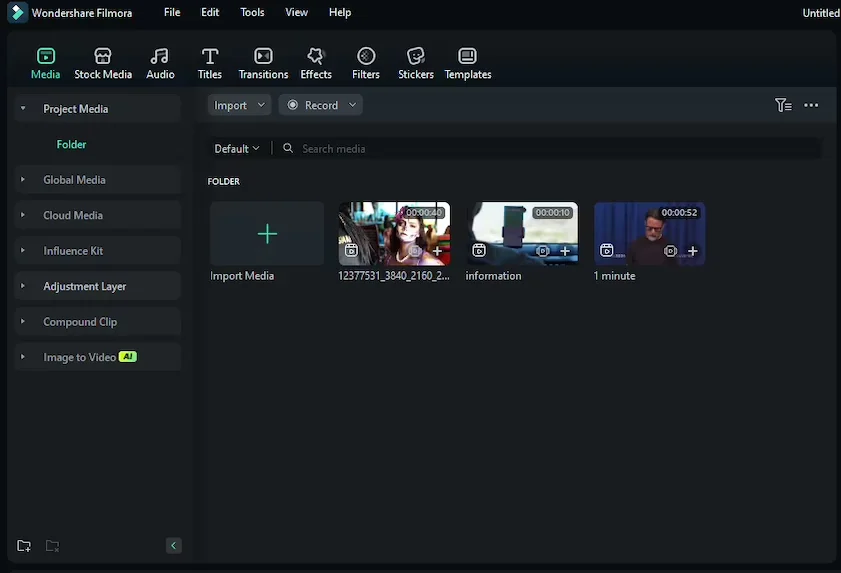
Why we picked it: Filmora fits vloggers on a steady upload schedule: AI Smart Cutout takes out pauses, and Smart Short Clips reframes footage for Shorts. It is a desktop editor, simpler than professional software.

Key features:

  • Multitrack timeline. It comes with keyframe animation and motion tracking.
  • AI Smart Cutout. It removes pauses and silence automatically.
  • Smart Short Clips. Auto reframe follows the subject when you change formats for Reels, TikTok or Shorts.
  • AI music matching. It picks tracks based on the mood of the video.
  • AI Portrait Cutout. It removes the background without a green screen.
Pros:
  • AI tools such as subtitles, subject-tracked cropping and pause removal save time.

  • The library of trending templates and effects is huge.

  • It is simpler than professional software.

Cons:
  • AI runs on limited credits and needs a higher-tier subscription.

  • Some effects and templates that used to be free are now marked Pro.

  • Some users report that support and refund requests go through a chatbot.

Price and platforms: Windows and macOS. Free exports are always watermarked. Basic removes the watermark but has no AI tools or Effects Store, Advanced adds AI, and a license for a single platform and version also exists from $4.17/month.

  • Best for

    Color-graded, cinematic vlogs from creators willing to learn a professional tool.

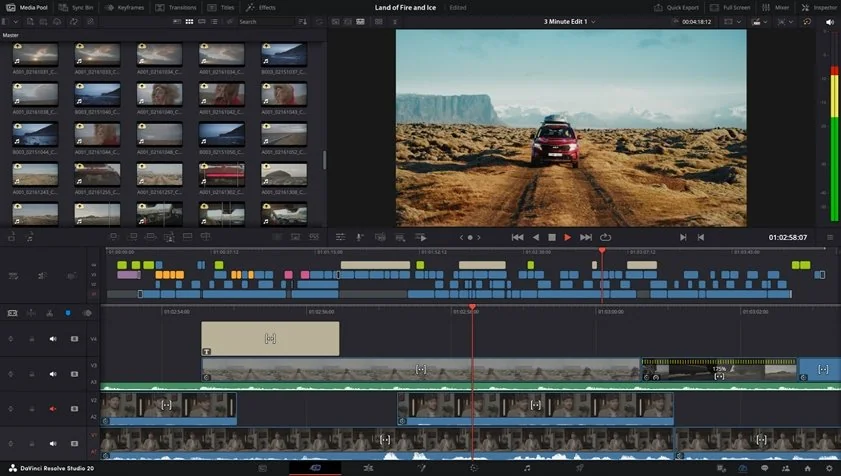
Why we picked it: DaVinci Resolve is the pick for a cinematic vlog look: grading runs through Nodes with HSL, HDR grading and LUTs. It is built for filmmaking and post-production, and its free base version has no watermark or time limit.

Key features:

  • Separate modules. Edit, Color, Fairlight for audio and Fusion for VFX each have their own space.
  • Color grading. It runs through Nodes, with secondary correction, HSL, HDR grading and LUTs.
  • Speed Ramps. They give frame-by-frame control of speed through manual settings.
  • DaVinci Neural Engine. Object and face recognition, AI upscaling and auto-stabilization are available only in the paid Studio version.
Pros:
  • Many consider it an industry tool that is free.

  • Once you learn the shortcuts and workflow, it is fast and reliable, even with 4K footage on powerful hardware.

Cons:
  • Almost nothing works in one click, so it is not a pick-up-and-go tool.

  • It is resource-intensive, and powerful hardware is recommended.

  • It has no built-in licensed music library.

  • Auto subtitles come from a third-party plugin installed separately.

Price and platforms: Windows, macOS and Linux. The base version is free; Studio is a one-time payment rather than a subscription of $295.

  • Best for

    Creators who already work in Adobe® apps, and vloggers stepping up to professional tools.

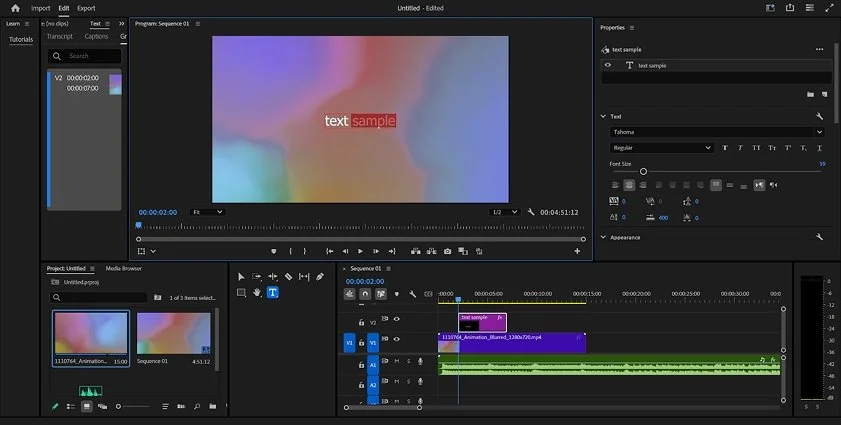
Why we picked it: Premiere® Pro suits vloggers who already work in Adobe® apps: it integrates with After Effects®, Photoshop® and Audition®, and Text-based editing lets you cut pauses through the transcript.

Key features:

  • Text-based editing. You find and delete pauses by working with the transcript.
  • Auto reframe. It keeps the main subject in frame when you change the format.
  • Speech to text. It creates auto subtitles and translates them into 27 languages, though styling is set up manually.
  • Lumetri color. Curves, color wheels, HSL and Auto Color sit alongside multicam editing.
Pros:
  • It stays flexible from simple edits to complex projects.

  • Regular AI updates add tools such as Object Mask and Generative Extend.

Cons:
  • It is subscription only, with no one-time purchase.

  • The barrier to entry is high for beginners.

  • Users report crashes, bugs and demanding hardware requirements.

  • It has no built-in video templates. Motion Graphics templates mostly come through Adobe® Stock® for an extra fee.

Price and platforms: Windows and macOS. It is sold by monthly or annual subscription, standalone or inside Creative Cloud® Pro. The 7-day trial starts when you sign up for a subscription, and generative features use Firefly credits from $22.99/month.

  • Best for

    iPhone and pro-camera footage for YouTube, edited on a Mac.

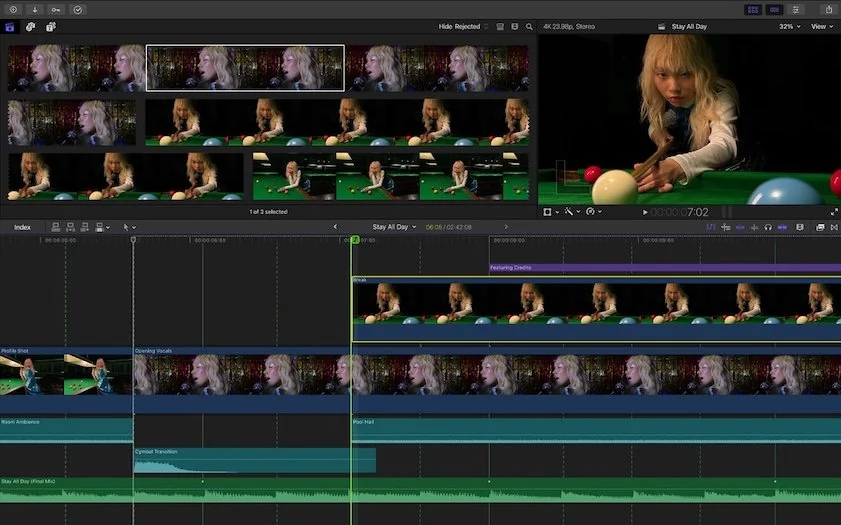
Why we picked it: Final Cut Pro is the Mac choice for vloggers who shoot on an iPhone or a pro camera: a magnetic timeline, advanced color correction and multicam editing, all built for the Apple ecosystem.

Key features:

  • Magnetic timeline. Final Cut Pro edits on this timeline.
  • Color correction. It is advanced color correction.
  • Multicam editing. It is part of the editor.
  • Effects. A basic set comes included and can be expanded with paid third-party packs.
Pros:
  • Advanced color correction and multicam editing come in one editor.

  • A one-time purchase option means no subscription.

Cons:
  • AI features are limited compared with newer AI-first products.

  • The built-in effects are basic.

  • It is built for the Apple ecosystem, so it is not an option on Windows.

Price and platforms: Apple ecosystem. It comes with a 90-day trial and a paid version from $12.99/month.

  • Best for

    First vlogs, school projects and simple family videos on Apple devices.

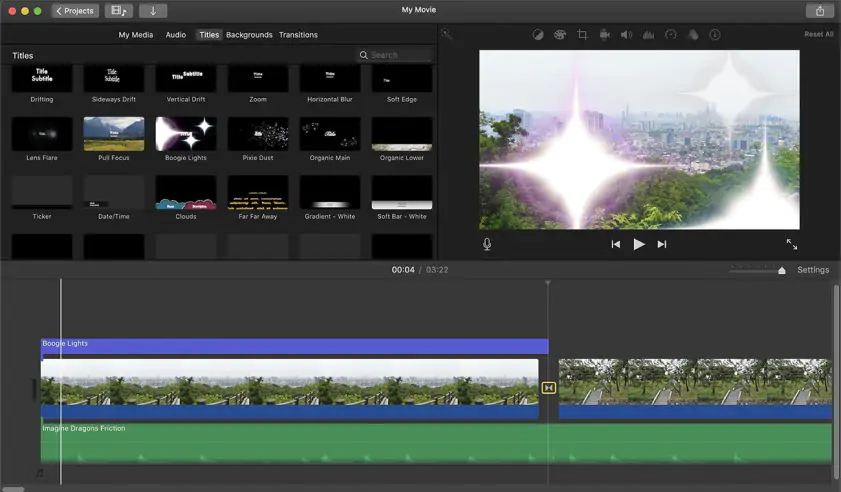
Why we picked it: iMovie is the no-install start for a first vlog on Apple devices: it comes preinstalled, with ready-made trailer templates and simple color correction.

Key features:

  • Basic editing. It covers the basics of cutting and arranging clips.
  • Trailer templates. They are ready-made.
  • Color correction. Simple color correction is included.
Pros:
  • It is preinstalled on Apple devices.

  • The interface is simple enough for first attempts at editing.

Cons:
  • It has almost no AI features.

  • The built-in library of effects and music is modest.

  • It works only on Apple devices.

Price and platforms: Apple devices. It is free, with no watermark or limits.

  • Best for

    Quick social posts and short videos from templates, in a browser or on a phone.

Why we picked it: Adobe® Express® fits vloggers who also post quick social clips: templates for posts and short videos are easy to edit on the canvas, in a browser or a mobile app.

Key features:

  • Templates. They cover posts and short videos and are easy to edit right on the canvas.
  • One-click resizing. It fits social media formats and needs Premium.
  • AI background removal in video. It works without a green screen and also needs Premium.
  • AI auto subtitles. They are part of the video toolkit.
Pros:
  • Adobe® Stock® integration is available, with full access paid.

  • Generative AI is Firefly, which users call commercially safe.

  • The drag-and-drop interface is easy to pick up.

Cons:
  • Video editing is very limited, and full-fledged editing is hard to do.

  • The best templates and features are in Premium, and credits run out quickly.

  • The browser slows down on large projects.

Price and platforms: Browser and mobile app, with an Adobe® account, sign-in and internet connection required. The free plan has limits on features, content and AI; Premium is a monthly or annual subscription from $9.99/month, and a 30-day trial starts when you sign up.

  • Best for

    Subtitles and Shorts resizing in a browser, with real-time collaboration for teams.

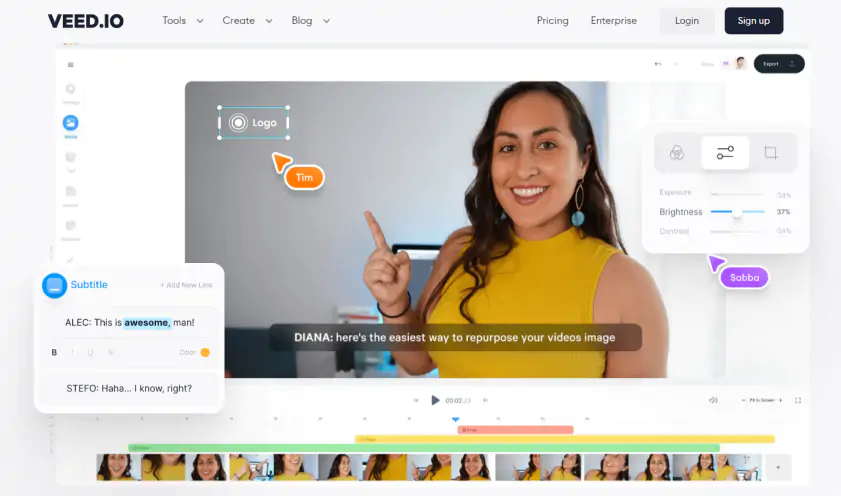
Why we picked it: VEED helps vloggers who live on captions and Shorts: AI subtitles with translation, one-click resizing for Reels, TikTok and Shorts, and Magic Clips for cutting vertical clips from long videos, all in a browser.

Key features:

  • AI subtitles. They come with styles and translation into other languages, but translation costs AI credits and subtitle hours are capped by plan.
  • Magic Clips. It cuts vertical clips from long videos.
  • Resizing. One click fits Reels, TikTok and Shorts.
  • Remove Silences and Clean Audio. The first cuts pauses and filler words automatically, and the second tidies the sound on talking-head videos.
Pros:
  • The browser interface is simple.

  • Auto subtitles are accurate, with styles and translation.

  • Clean Audio and Remove Silences save time on talking-head videos.

Cons:
  • Long, heavy projects can lag, buffer or fail to export.

  • AI credits run out quickly, and the features you need sit on higher plans.

  • The effects library is small, with only 42 effects.

Price and platforms: Browser only, plus a mobile app; it needs a stable internet connection and an account. The free plan adds a watermark, exports up to 10 minutes in 720p, and does not allow video uploads over 1 GB. Paid plans are monthly or annual subscriptions billed per member from $12/month.

  • Best for

    Quick edits and screen recordings for Windows users, done online.

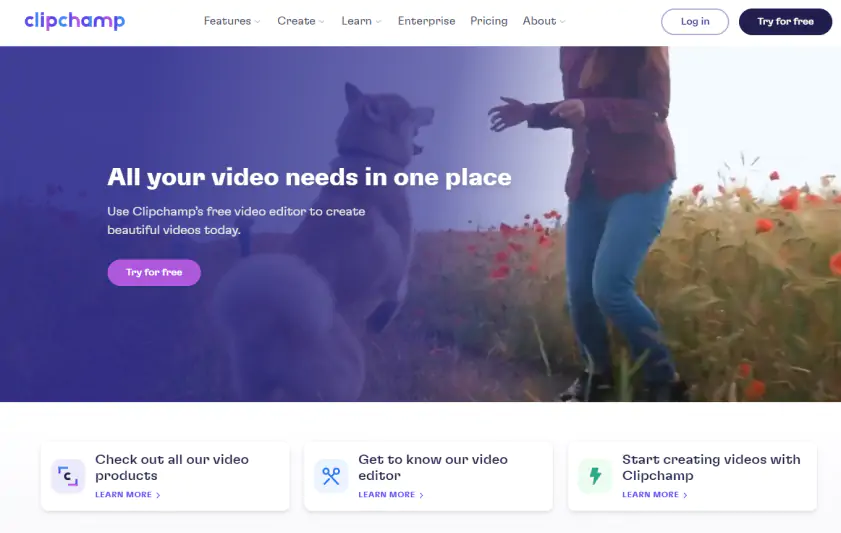
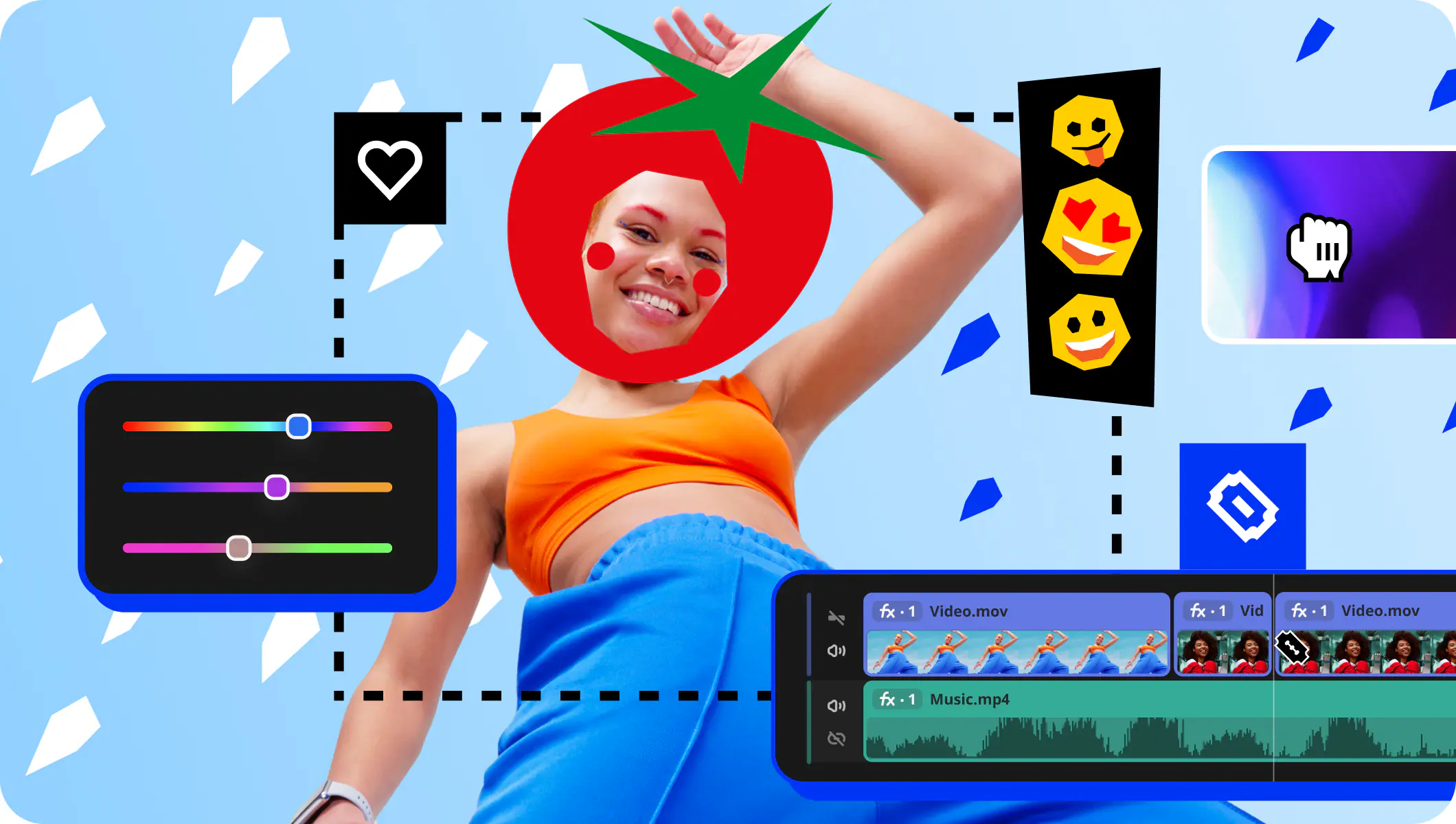
Why we picked it: Clipchamp suits Windows vloggers who need a quick cut: it is built into Windows 11, records screen and webcam, and adds free AI auto subtitles and silence removal.

Key features:

  • Simple timeline. It sits next to screen and webcam recording.
  • Auto subtitles. They are free, with a choice of language and a downloadable transcript.
  • Silence removal and automatic clip cutting. Both use AI and are free.
  • AI voiceover. It generates narration from text.
Pros:
  • It is already built into Windows.

  • Auto subtitles, voiceover and noise reduction are free.

Cons:
  • Large files slow it down, and export can freeze at the final stage.

  • Advanced editing and audio options are limited.

  • It has no auto-reframing with subject tracking and no AI video noise reduction.

Price and platforms: Browser (Edge or Chrome), a Windows 11 app and an iOS app, with a Microsoft account. The free plan exports in 1080p with no watermark; Premium adds 4K and a brand kit, and comes as a separate subscription or inside Microsoft 365 Personal and Family from $9.99/month.

How to choose a vlog editing app

The best vlog editor is the one that fits the footage you already shoot. Match your situation:

  • Your first vlog: Movavi Video Editor gives you templates to start from and a free version to try. On an Apple-only setup, iMovie is the simple alternative.
  • Travel vlog editing from days of footage: Movavi Video Editor trims long source files before the timeline. Final Cut Pro suits iPhone and pro-camera footage on a Mac, and DaVinci Resolve suits a computer strong enough to run it.
  • Daily vlogs on a deadline: automatic pause removal is the time saver. Movavi Video Editor, Filmora, VEED and Clipchamp all have it.
  • Editing on a phone: CapCut runs on mobile, web and desktop, and Adobe® Express®, VEED and Clipchamp have phone apps. Movavi App (iOS) is the mobile editor for reels with pre-designed templates.
  • Cinematic vlogs: DaVinci Resolve, Premiere® Pro and Final Cut Pro give you manual color grading and multicam editing.

Pick one tool from the list and cut one real video in it this week. The free version of Movavi Video Editor is an easy place to begin: open the Vlog or Travel templates, drop in your own clips and photos, and save the next idea from Movavi Ideas for the upload after that.

Movavi Video Editor
Create awesome videos easily

*The free version of Movavi Video Editor may have the following restrictions depending on the build: watermark on exported clips, 60-second video or 1/2 audio length limit, and/or some advanced features unavailable when exporting videos.

Frequently asked questions

What is the best video editor for YouTube beginners?

Pick the YouTube vlog editor with the shortest learning curve. Movavi Video Editor, iMovie and Clipchamp are the simplest here, while DaVinci Resolve and Premiere® Pro are the steepest to learn. Check each free version's limits before you commit, since a watermark or an export cap is easier to spot on day one than after a finished vlog.

How can I edit vlogs quickly every week?

Shrink the repeatable work. Remove pauses automatically, generate subtitles instead of typing them, and start from a template so the structure is already set. If you use Movavi Video Templates, keep the same intro and outro Blocks between uploads and swap only the middle ones.

Should I edit vlogs on a phone or a computer?

A phone is quick for short vertical clips. A computer copes better with long horizontal videos and big files, where browser editors such as VEED and Clipchamp can lag or freeze on heavy projects. YouTube Help also lists 16:9 as the standard aspect ratio on a computer.

Do I need color correction for a vlog?

Not to publish one. Presets give a consistent look in a click, and manual controls cover the rest; DaVinci Resolve goes deepest if you want a graded look. YouTube Help recommends BT.709 as the standard color space for SDR uploads and converts unsupported color spaces to it.

Have questions?
If you can’t find the answer to your question, please feel free to contact our Support Team.
Join us for discounts, editing tips, and content ideas

1.5M+ users already subscribed to our newsletter

By signing up, I agree to receive marketing emails from Movavi and agree to Movavi's Privacy Policy.